
Uninstall Node
IMPORTANT: Only remove a node if absolutely necessary. During decommissioning, replicas and erasure-coded fragments on that node are temporarily unavailable to satisfy configured read-consistency requirements for client requests. As data is streamed to other nodes, it becomes available again. Depending on data volume and network bandwidth, this process may take several days or longer to complete. Cloudian recommend that you involve your Solutions Architect or Technical Support during the planning phase. Consider engaging Professional Services to limit exposure and mitigate risk.
Preparing to Uninstall a Node
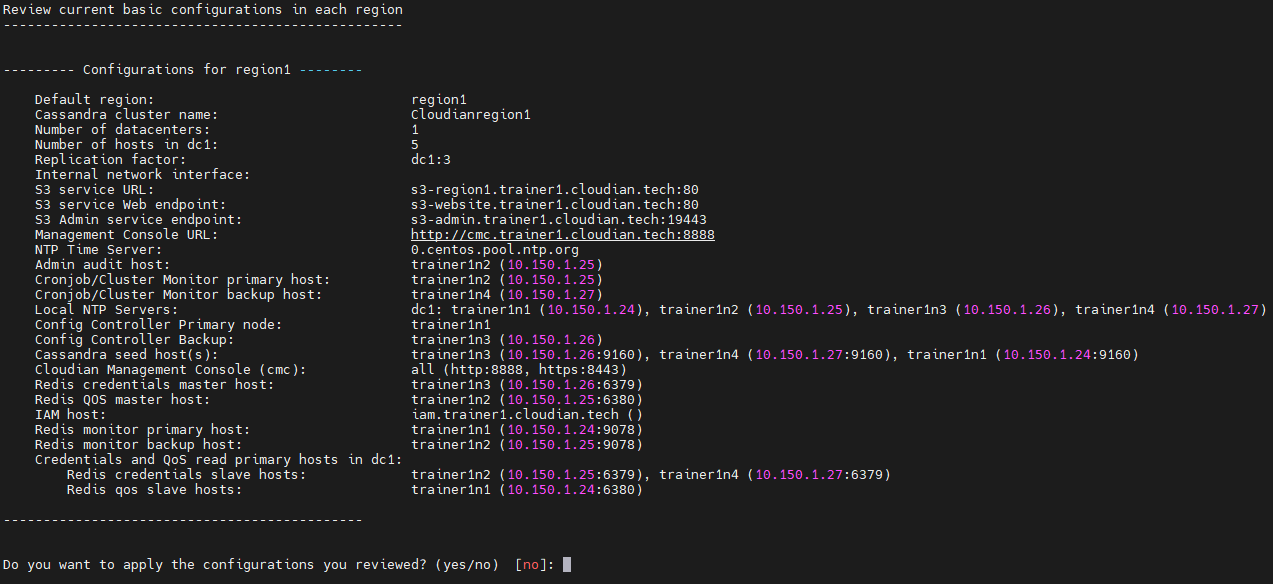
Instructions
- Check the cluster configuration and record all service role assignments from the CLI. Move services to alternative nodes according to support recommendations
Either run cloudianInstall.sh from the staging directory as root or hspkg install as sa_admin - Select option 4 - Advanced Configuration Options
- Next select Option a - Change server role assignments
- Finally select Option r - Review cluster configuration
- Ensure sufficient nodes remain to meet storage policy requirements.
- Be aware that removing one or more nodes may impact overall HyperStore performance.
- Verify that the remaining nodes have enough free storage capacity to accommodate the data that will be redistributed.
Uninstalling a Node
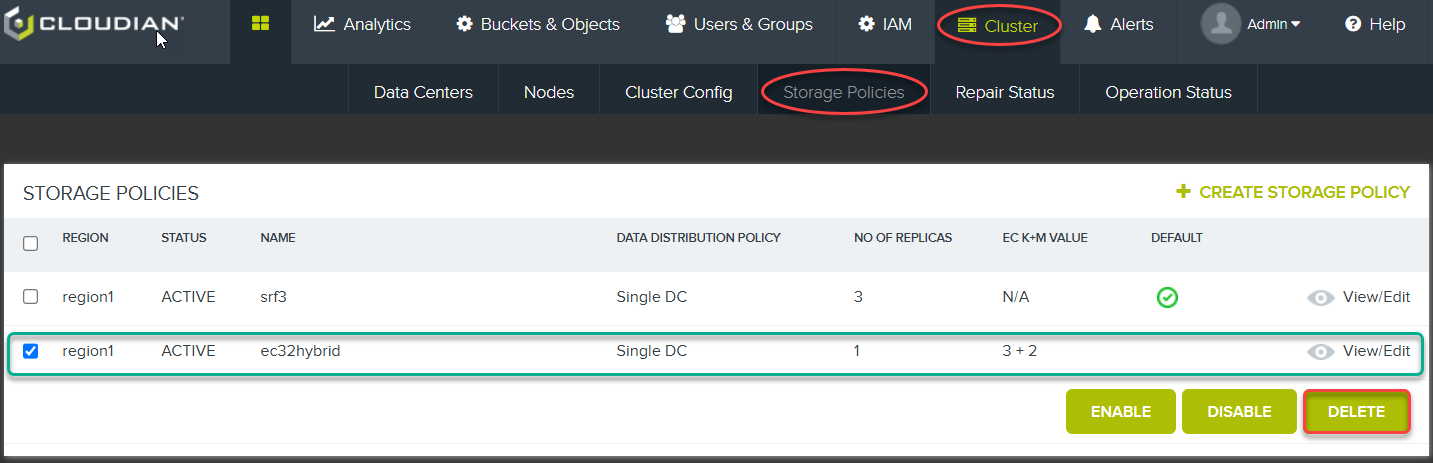
Instructions
- Login to the CMC on node 1 as Admin user with the IP address of the node, bypassing the loadbalancer.

- Click Cluster Tab
- Click Storage Policies Sub-Tab
- Ensure you delete any policies you have created that require more than nodes than the number of nodes that will be left (e.g. EC 3 + 2)
- You may need to remove Objects and Buckets beforehand if you have created anything using these Policies.
Info
There are a few prerequisites we must ensure are achieved before we start the uninstall process.
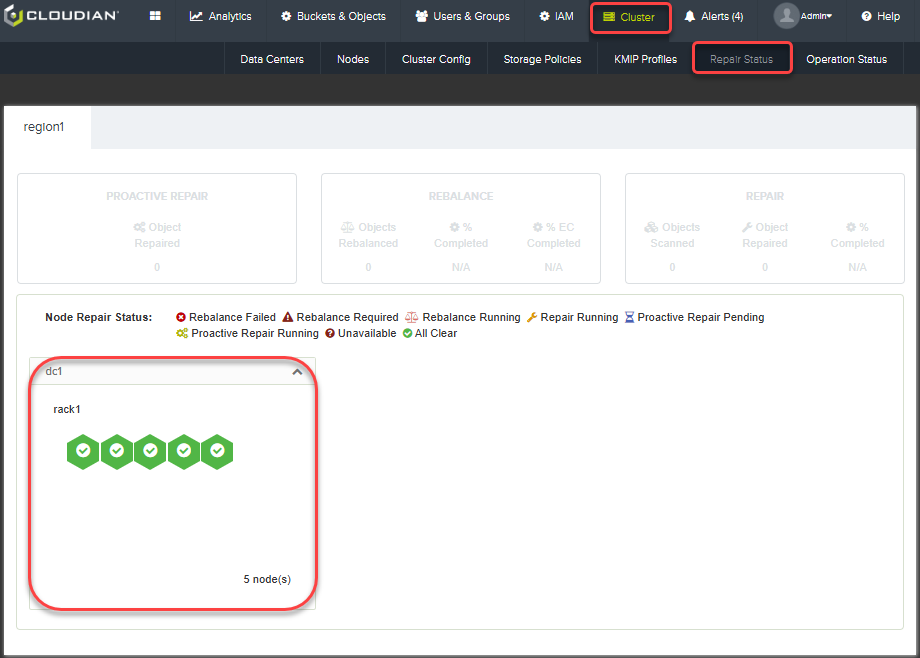
Instructions
- As Admin user
- Click Cluster Tab
- Click Repair Status Sub-Tab
- Ensure there the nodes show as All Clear
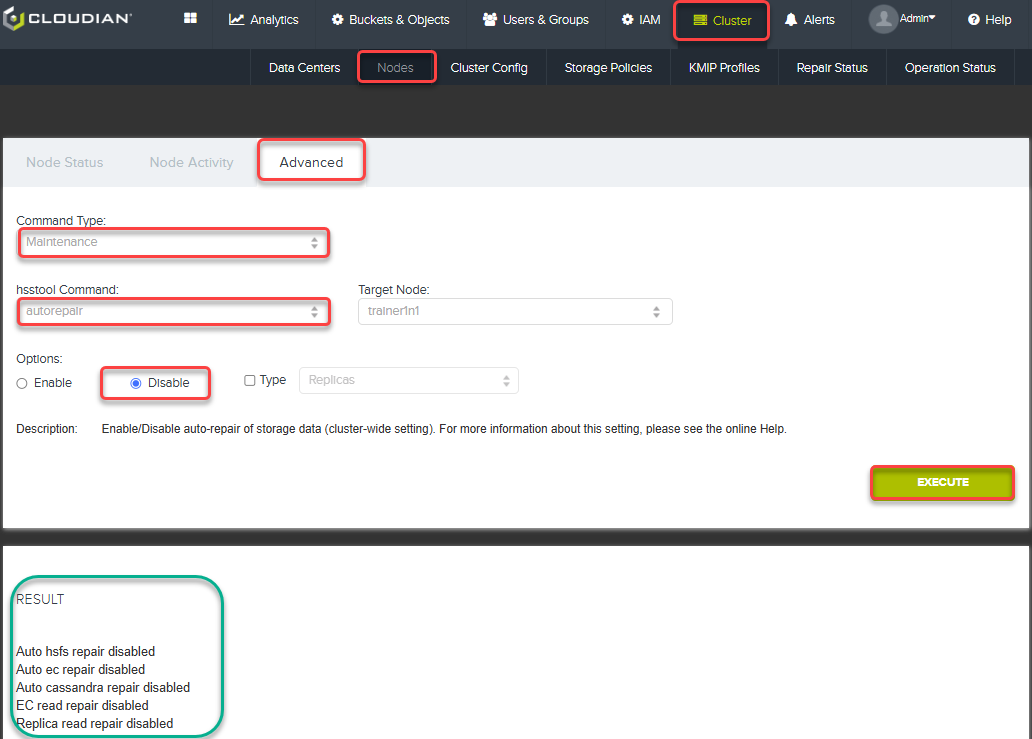
Instructions
We need to ensure that the HyperStore Cluster does not start any further repairs whilst the uninstall process completes.
- As Admin user
- Click Cluster Tab
- Click Nodes Sub-Tab
- Click Advanced
- Select Command Type Maintenance
- Select hsstool Command autorepair
- Select Options: disabled
- Click Execute
Information
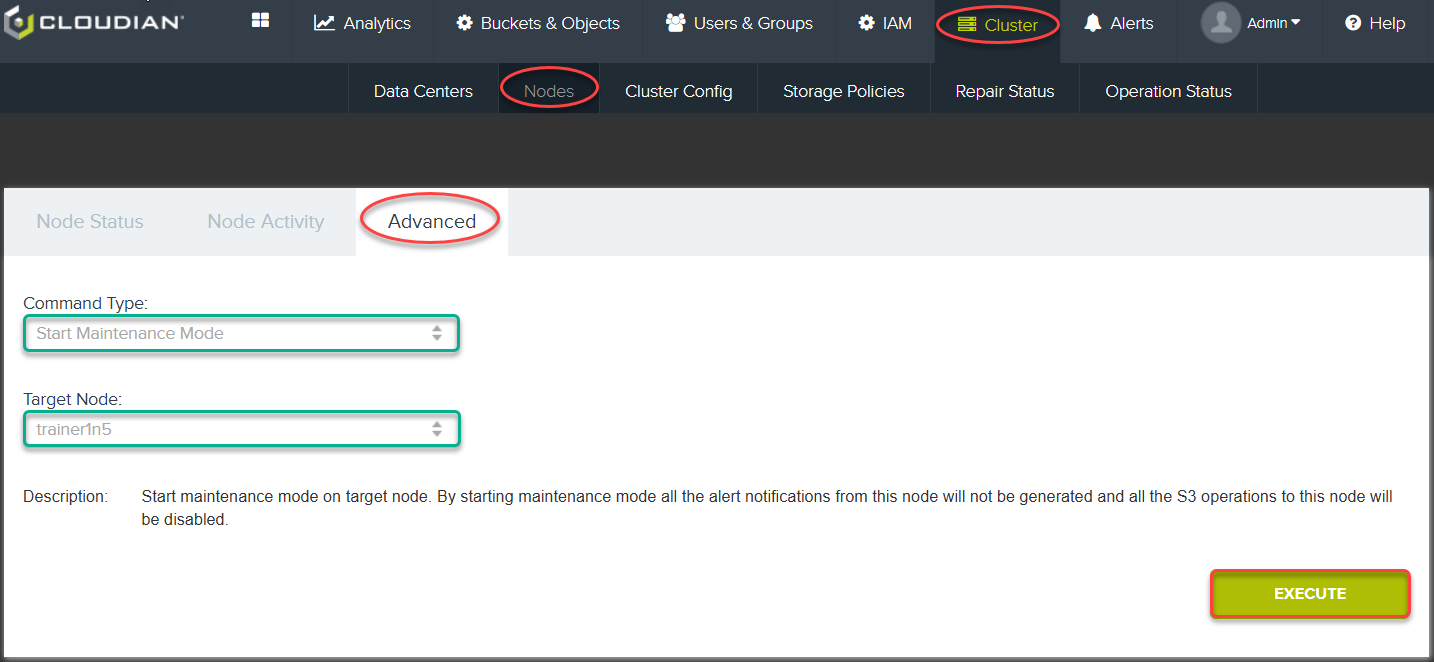
Prior to removing the node it is best practice to put the node into maintenance mode. This ensures that:
The node will not generate alerts
The S3 Service on other nodes will not direct requests to the HyperStore Service or the Metadata DB on the node that is maintenance mode
Instructions
- Select Cluster Tab
- Select Nodes Sub-Tab
- Select Advanced
- Select Start Maintenance Mode
- Select studentXn5 where X is your student ID
- Click Execute
Instructions
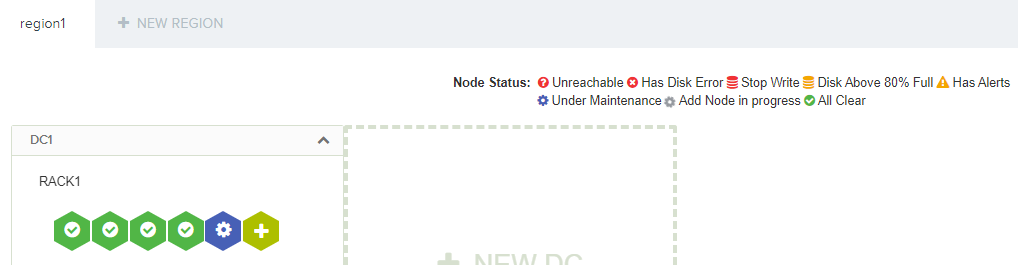
- From the main Cluster tab, confirm the node is demonstrated as in Maintenance Mode with a blue icon replacing the green icon.
Info
Remember, if you are removing a node after having added a new node to your cluster, you must complete the rebalance operation for the new node before removing a node.
If the node you removed was "dead", meaning the Cassandra Service on the node is down or unreachable when you removed the node you MUST repair the remaining nodes in your cluster (this is not necessary if the node you removed was live).
Instructions
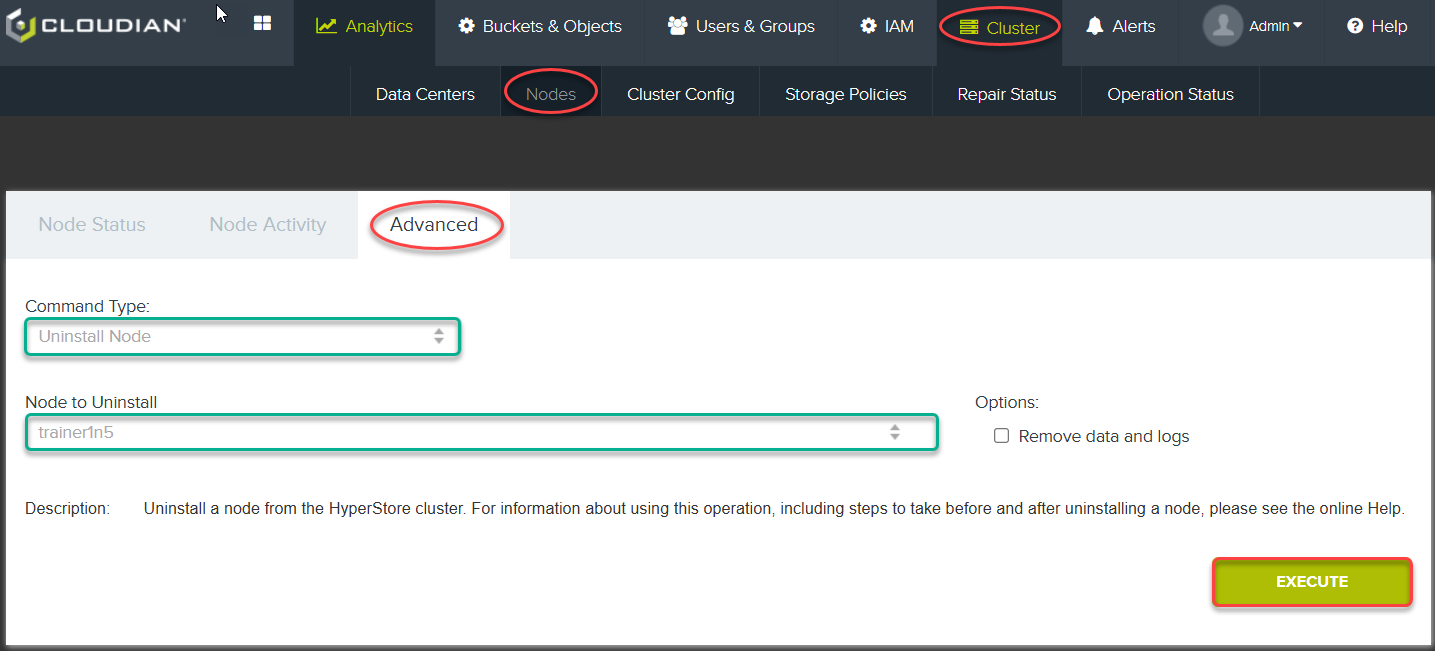
- Select Cluster Tab
- Select Nodes Sub-Tab
- Select Advanced
- Select Uninstall Node
- Select Target Node studentXn5 where X is your student ID
- Click Execute
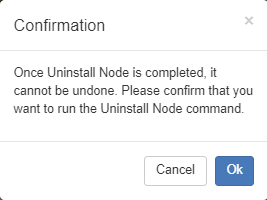
- Click OK in the popup box to confirm that you want to run the Uninstall Node command
Info
Consider if you wish to delete data and logs at the same time by selecting the check box
Post Uninstall Steps
Info
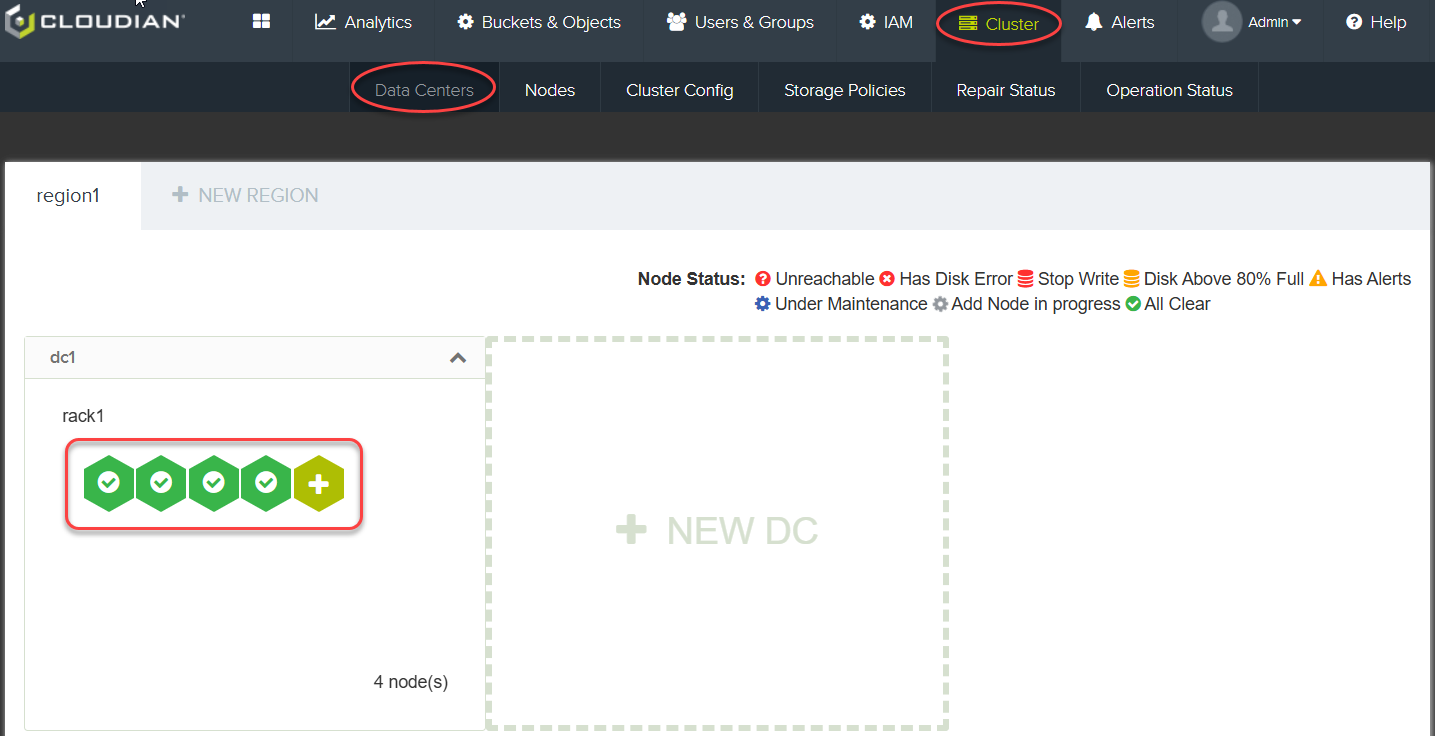
Once Uninstall operation completes, check Cluster Tab – Data Centres and ensure you now only have 4 Nodes configured.
Instructions
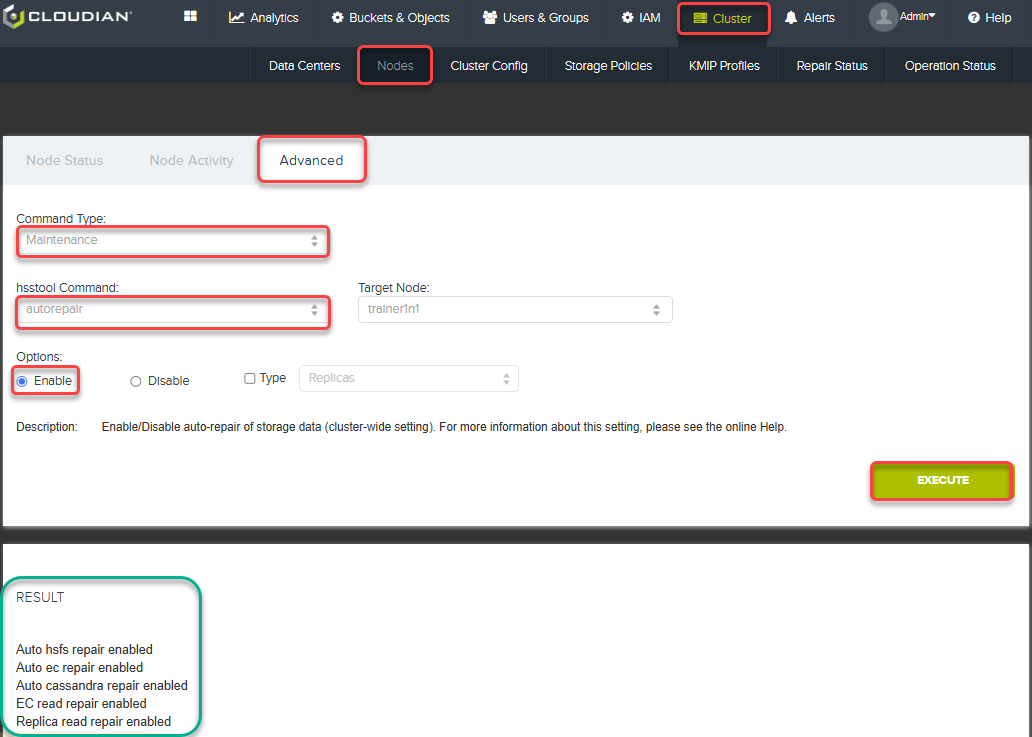
- Select Cluster Tab
- Select Nodes Sub-Tab
- Select Advanced
- Select command type Maintenance
- Select hsstool Command autorepair
- Select Enable
- Click Execute
- Click OK in the popup box to confirm that you want to start autorepairs
- Confirm you get a positive result
Information
IMPORTANT ! If the node was "live" when you removed it -- so that the Uninstall Node operation included a decommissioning process -- make sure that in the Operation Status page the Uninstall Node operation shows as having completed successfully with no errors, before you consider manually deleting the data that remains on the removed node. If the node was "dead" when you removed it -- so that you had to subsequently run repair operations on the remaining nodes in the cluster -- make sure that in the Operation Status page the Uninstall Node operation and also all those repair operations show as having completed successfully with no errors, before you consider manually deleting the data that remains on the removed node.
If you want to re-use a removed node's host machine by adding it back to your HyperStore cluster as a new node, then before using the host machine as a new HyperStore node you must remove all data from the host and re-install the operating system.