
Object Lock
Disable Root
Warning
Disabling the root account is a non-reversable action in the lab
Instructions
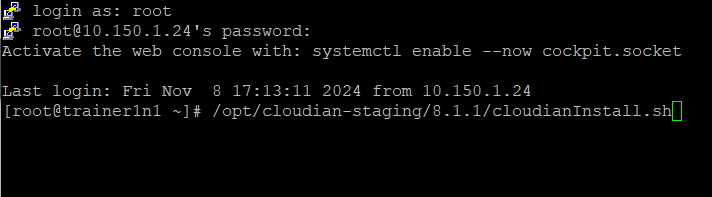
- Login as root user to the Config Controller Node (node1) node using the password provided by your trainer
- Change directory to /opt/cloudian-staging/8.2.5 and run the script cloudianInstall.sh
/opt/cloudian-staging/8.2.5/cloudianInstall.sh
Instructions
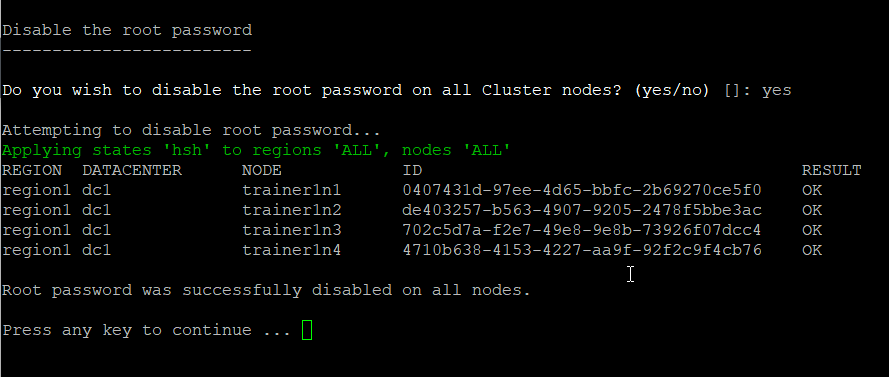
- Select Advanced Configuration (Option 4)
- Select Disable Root Password (Option m)
- Type "yes" in response to the prompt
Note
HSH must be enabled before you can disable the root password.
Instructions
- Exit from menu and logout as root user. The root user account is now disabled
Create Object Locked Bucket
Instructions
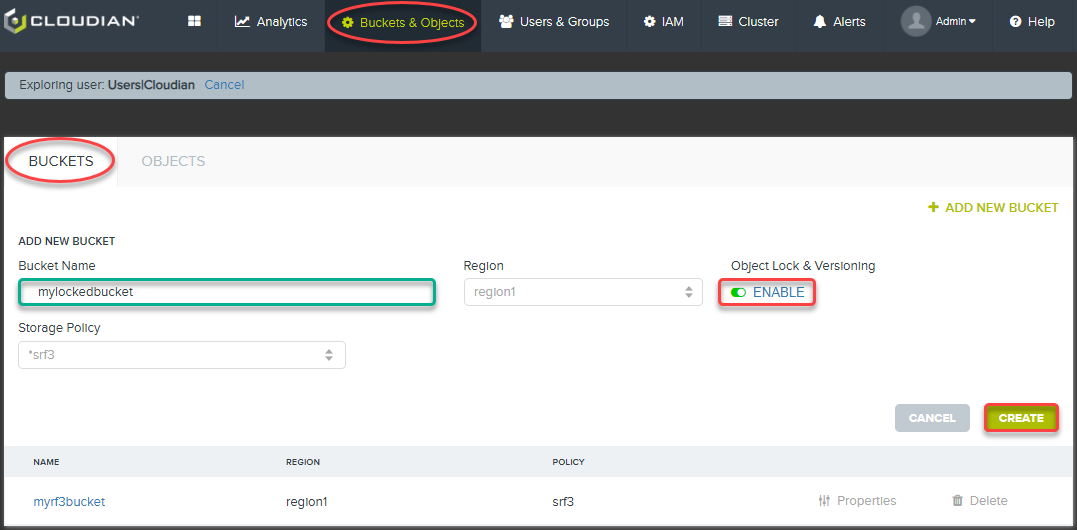
- Login as your storage user to CMC
- Select + Add New Bucket
- Enter mylockedrf3bucket for bucket name
- Click Object Lock Button to enable Object Lock
- Ensure SRF3 is selected for Storage Policy
- Click Create
Instructions
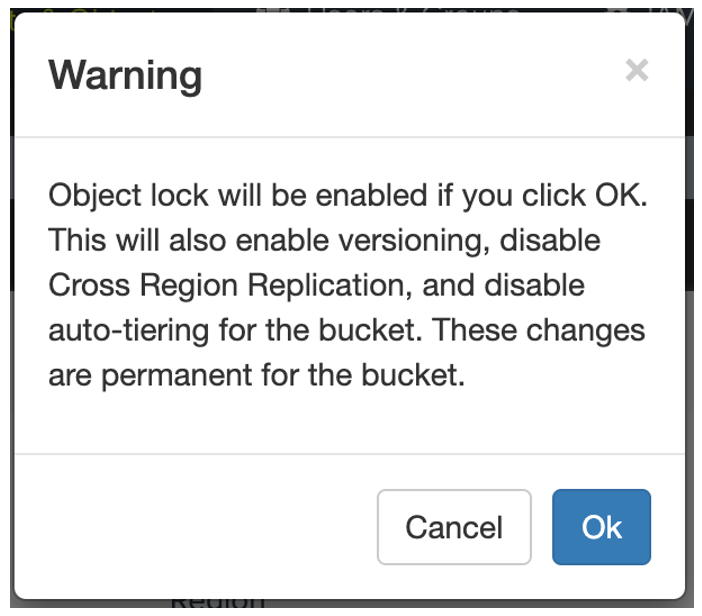
- Read the Warning (and do read the warning) It is important to understand these changes are permanent for the bucket.
- Click OK to proceed.
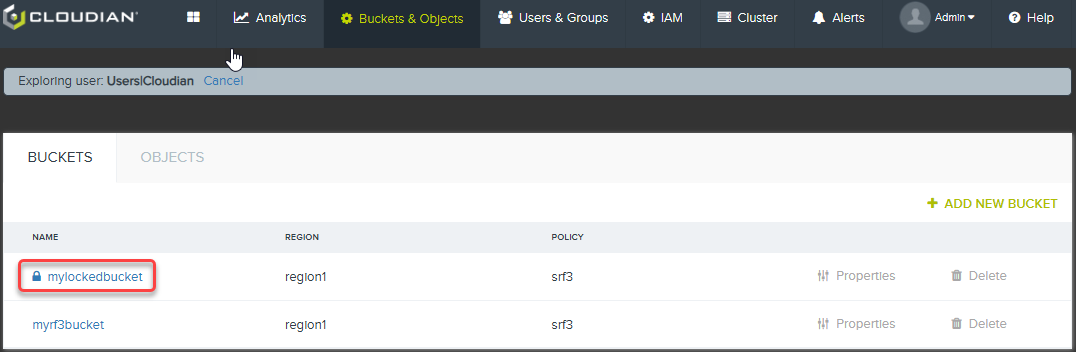
Instructions
You will now see your new bucket, with a padlock next to the name, denoting this bucket as object locked.
- Select the OBJECTS tab
- Note that we have a selector to either show or hide versions
- Upload the 5k file to the mylockedrf3bucket
- Try to delete the 5k object. Were you succesful? Why?
- As you can see, the bucket is configured for Object Lock but there is no retention policy set, so objects uploaded are not locked using a bucket default value and would rely on the API defining the retention period.
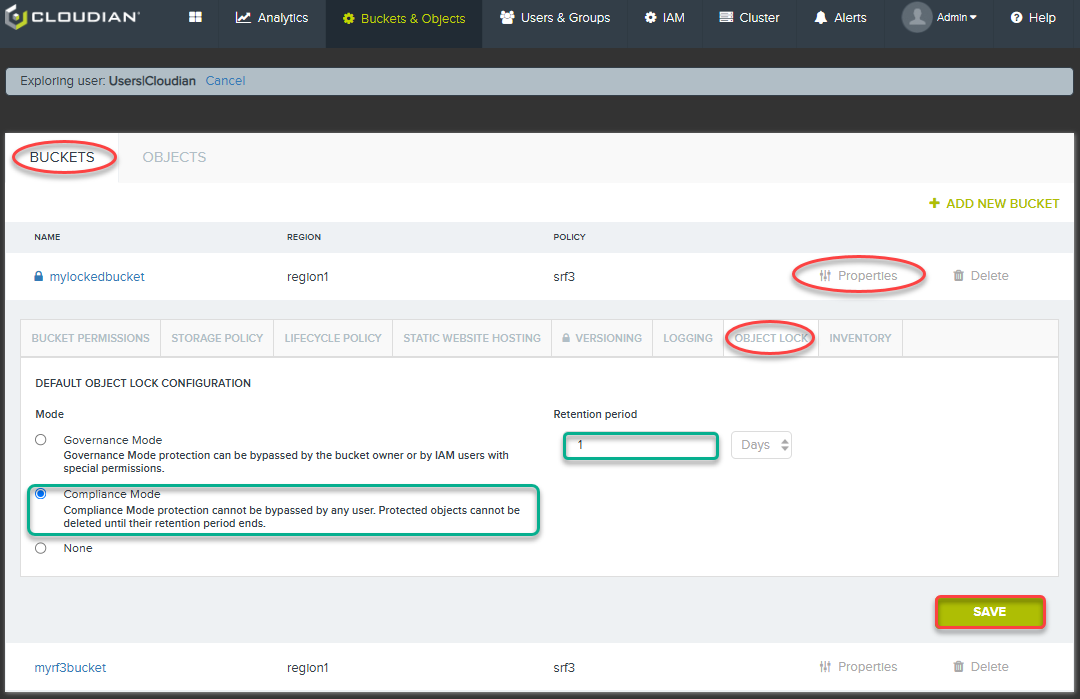
Instructions
- Click on the Bucket Properties
- Click on Object Lock tab
- Notice Default Object Lock Policy is set to None
- Notice the Modes
- Governance : Protects against
- Accidental Deletions
- Standard Users deliberations
- Misconfigured Applications
- Compliance : Protects against
- Everything covered by Governance and additionally
- Privileged users with bypass permission
- Governance : Protects against
- Select Governance Mode
- Set a retention period of 1 day. This is the minimum that can be set via CMC.
- Click Save
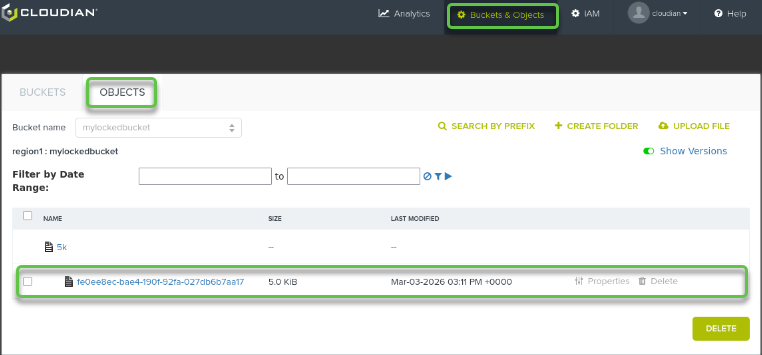
Instructions
- Upload the 5k file to the mylockedrf3bucket
- Notice this time, the Object now has a version and the version has a padlock next to it. Can you delete it now?
- As the object is protected for Govenance, the IAM root (or an account that has the s3:BypassGovernanceRetention permission) can delete the Object
- In the Properties for the object, select the Object Lock tab
- Select none and save - the bucket retains the Governance protection but the object can now be deleted.
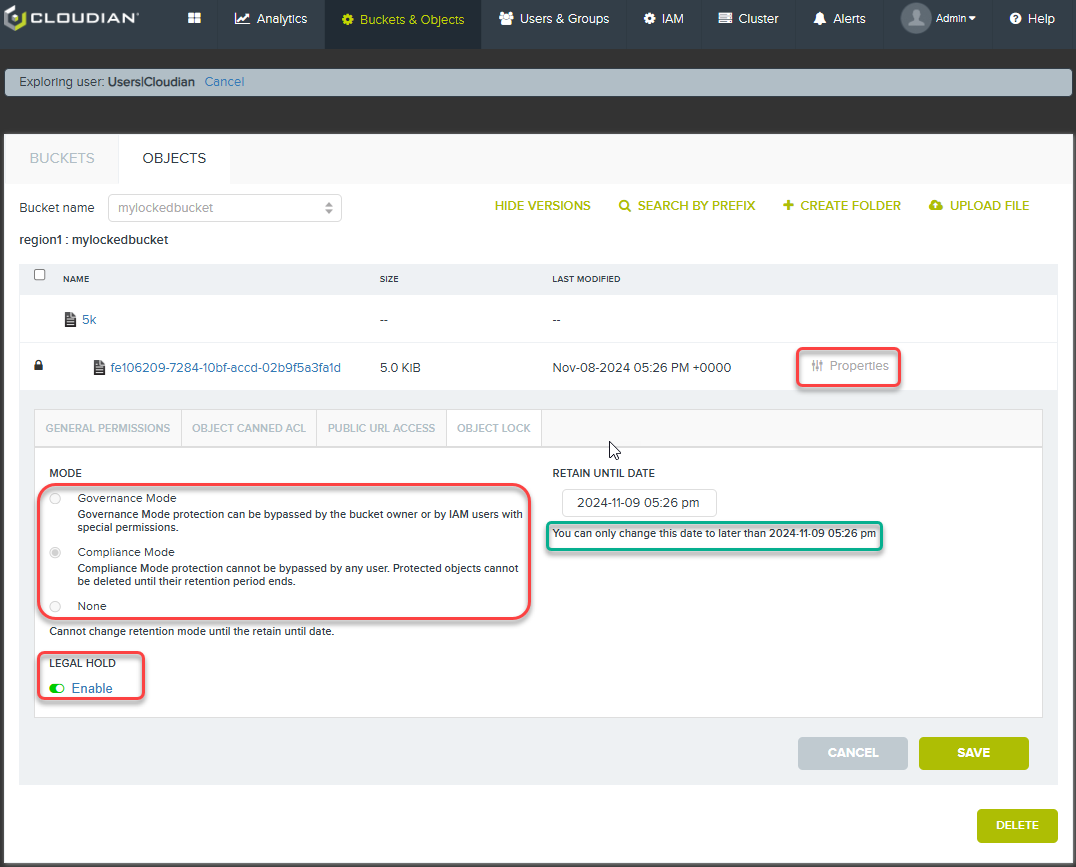
Instructions
- Lets set it to compliance instead. In the Properties for the object, select the Object Lock tab
- Select Compliance
- Enter a retain until date of at least 1 day and save the object.
Note
The object cannot be deleted until the retention period has expired.
Instructions
- Click on the Object properties, and then the Object Lock Tab.
Note
You cannot change Mode. You can also see when the retention period for this object ends.
You can extend the Retain Until date but not reduce it.
You may also enable a LEGAL HOLD against the object from here.