
3. Storage Policies
Information
We are now going to create an encrypted storage policy. Normally, software applications such as Rubrik, Veeam, CommVault etc. will encrypt the data, so there would be no need to re-encrypt again at the Storage Policy level. In our case we will assume we must enable it. By default HyperStore uses AES256 (post version 8.2.5).
3.1 Check License
Instructions
- Log back into the CMC and confirm as admin
- Select Cluster Tab
- Select Cluster Config sub tab.
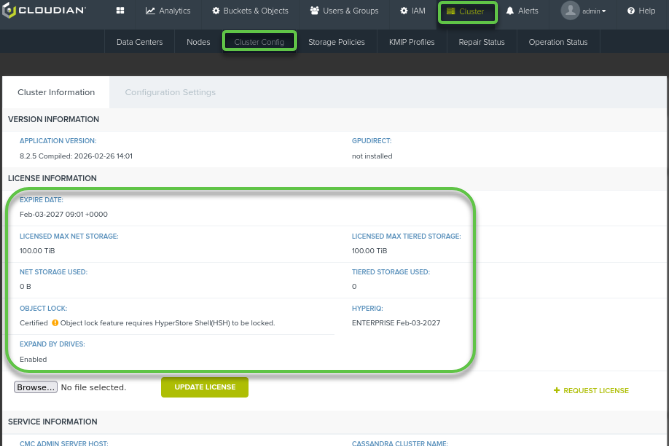
Confirm that the new license information is displayed as the following:
LICENSED MAX NET STORAGE:100.00 TiBOBJECT LOCK LICENSE:Certified ...HYPERIQ LICENSE:ENTERPRISE
3.2 Create RF Policy
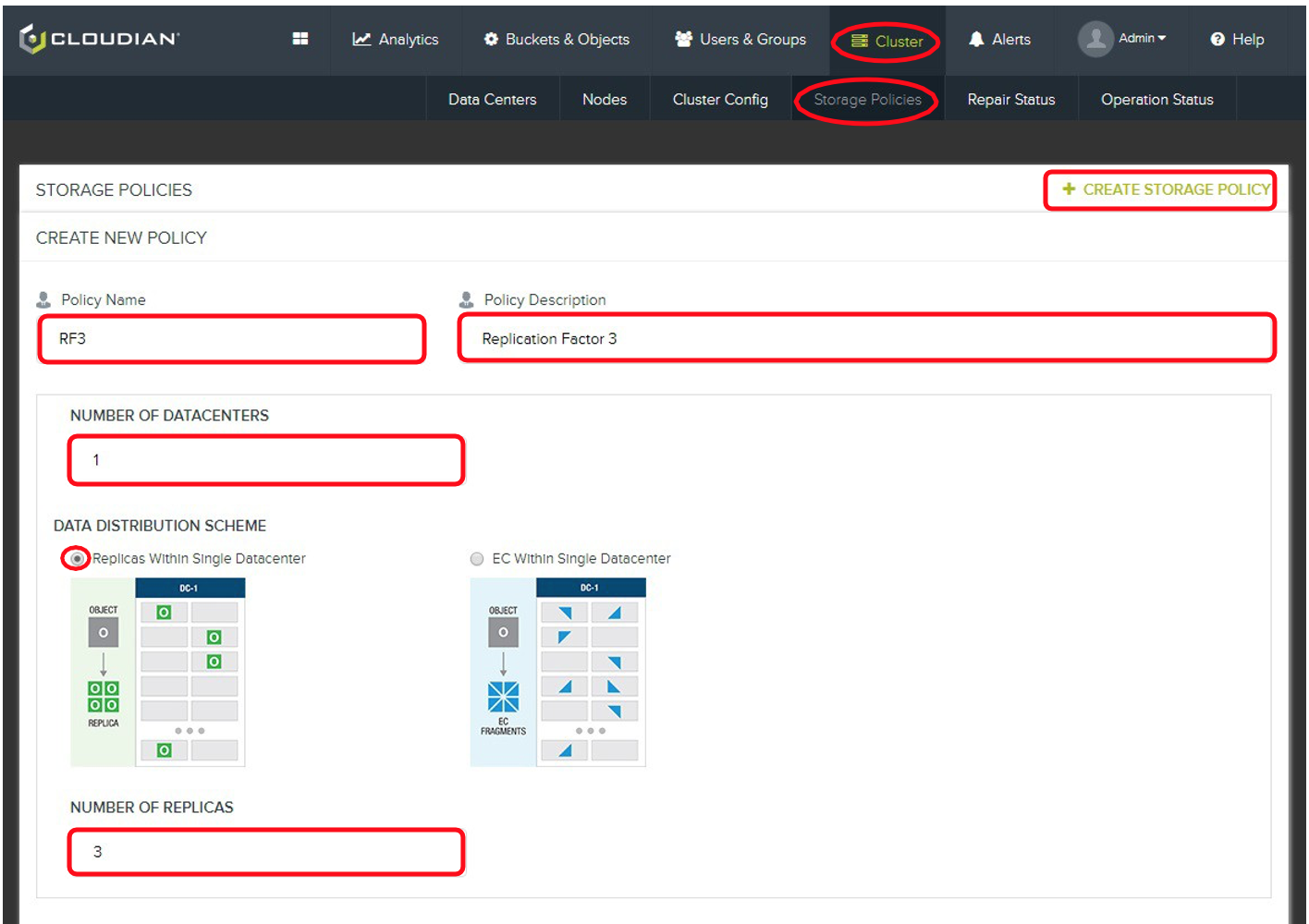
Instructions
- Select Cluster Tab
- Select Storage Policies Sub-Tab
- Click + Create Storage Policy
- Type “SRF3” as Policy Name
- Type “Secure Replication Factor 3” under description
- Leave Number of Datacenters as 1
- Ensure Replicas within Single Datacenter is selected
- Check or Change number of Replicas to 3
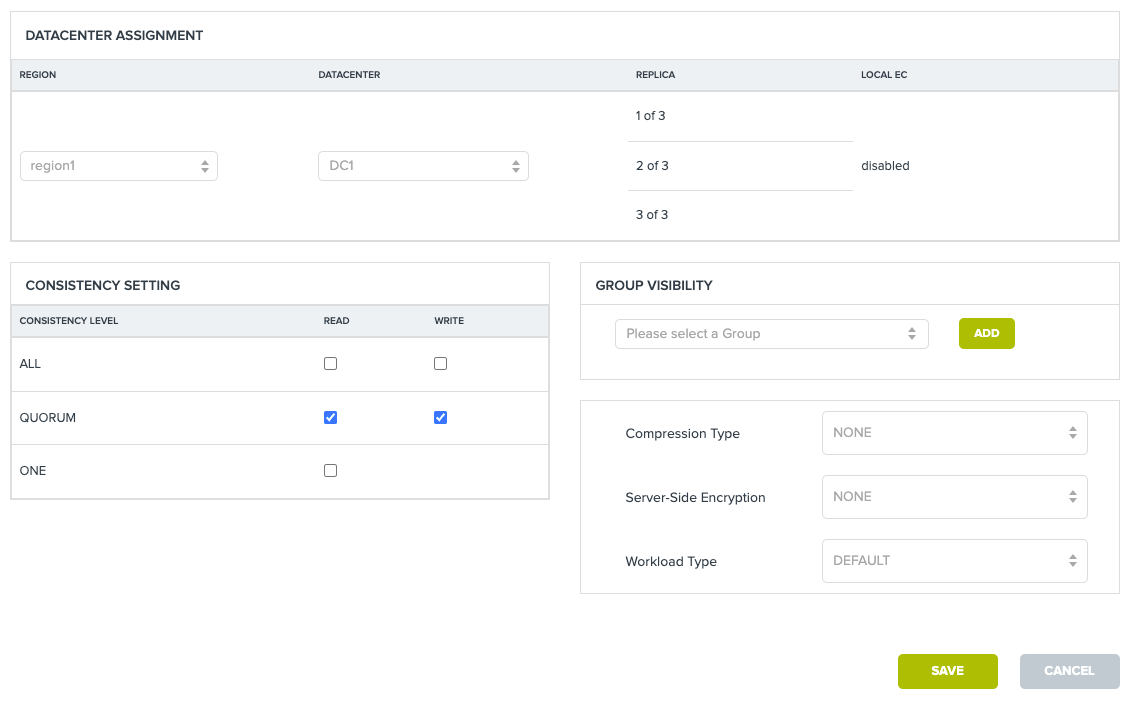
Instructions
- Set Server-Side Encryption to SSE
- Click Save
Important
For most applications, the 'Default' option under the ‘Workload Type’ drop-down menu is the most suitable. However, if you are using one of the software applications shown in the ‘Workload Type’ drop-down menu, e.g. VEEAM, Rubrik, Commvault, etc., then we strongly recommended that you consult with your Cloudian Systems Architect and Cloudian Support to see if one of these options is right for your deployment and use-case.
Some application Buckets may require a unique Storage Policy to be assigned to them. Be aware of your application's requirements so you can ensure your Bucket/Storage Policy configuration is correct. Your Cloudian Systems Architect can assist you in finding the right configuration.